Ebook Formatting: The Complete Guide to Professional Digital Books
Learn ebook formatting step by step. Cover styles, layouts, EPUB vs MOBI, Kindle optimization, images, TOC setup, and common mistakes to avoid.


So you finished writing your book. Done, right?
Not even close. There's a surprisingly big gap between a finished manuscript and an ebook that actually looks good on every device. Mess up the formatting and you'll get one-star reviews, returns on Amazon, and readers who assume you didn't care enough to get the basics right.
Here's how to go from raw manuscript to a polished file that passes validation on Kindle, Apple Books, Kobo, and Google Play. Step by step, no mystery.
What Is Ebook Formatting (and Why It Differs from Print)?
Ebook formatting means structuring a digital book file so it displays correctly on e-readers, tablets, phones, and desktop apps. You're defining heading styles, paragraph spacing, image placement, navigation, and metadata — all in a way each device can understand.
Print books have a fixed page size. You decide exactly where every line breaks and every image sits. You have full control.
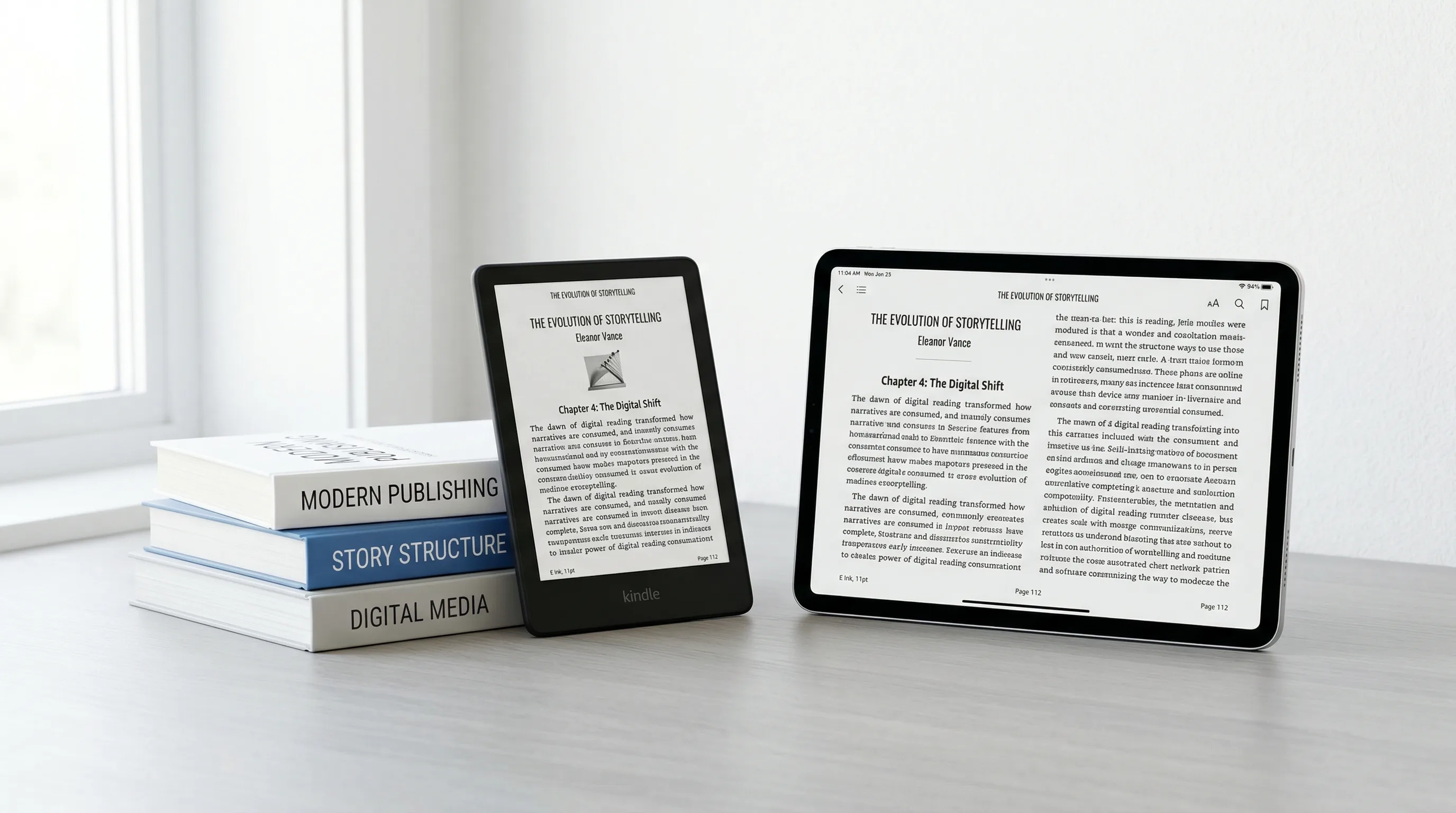
Ebooks? The reader picks the font, size, margins, and sometimes the background color. Your image might show up on a 6-inch Kindle or a 12.9-inch iPad. A paragraph that fills half a page on one device could span two screens on another.
If you try to force print-style precision into an ebook file, you'll end up with broken layouts, text that won't reflow, and images spilling off the screen.
Reflowable vs. Fixed-Layout Ebooks
First things first — figure out which layout model your book needs.
Reflowable Layout
Reflowable ebooks adapt to whatever screen the reader is using. Text reflows to fill the space. Readers can change fonts, bump up the text size, or flip between portrait and landscape.
- Fiction (novels, short stories, collections)
- Narrative nonfiction (memoir, biography, history)
- Business and self-help books
- Any text-heavy book without complex visual layouts
This is the default. About 90% of ebooks use reflowable layout.
Fixed-Layout
Fixed-layout ebooks pin every element to an exact position, like a PDF. Readers can't change fonts or text size. Pages look exactly as designed, but they might need pinch-to-zoom on small screens.
- Children's picture books
- Comics and graphic novels
- Cookbooks with full-page photo layouts
- Art and photography books
- Heavily designed textbooks
Fixed-layout is harder to produce, less accessible, and not supported everywhere. Unless your book genuinely needs pixel-precise positioning, stick with reflowable.
EPUB vs. MOBI vs. KPF: Ebook Format Differences
Three formats you'll run into most: EPUB, MOBI, and KPF. Each one belongs to a different ecosystem.
EPUB (.epub)
EPUB is the open standard, maintained by the W3C. Under the hood, it's a ZIP archive with HTML, CSS, images, and metadata.
- EPUB 3 is the current version. It supports HTML5, CSS3, embedded fonts, audio, video, and accessibility features.
- Accepted by: Apple Books, Kobo, Google Play Books, Barnes & Noble Nook, OverDrive, and most library systems.
- Amazon: KDP now accepts EPUB uploads and converts them to Amazon's internal format.
Build your EPUB first. It's the most portable format and works almost everywhere.
MOBI (.mobi)
KPF (.kpf)
KPF (Kindle Package Format) is what Amazon prefers now for Kindle publishing. You create it with Kindle Create, Amazon's free formatting tool.
- Supports enhanced typesetting (drop caps, better justification, Kindle Page Flip).
- Amazon-only. You can't upload KPF to Apple Books or Kobo.
- Created by running a Word document or EPUB through Kindle Create.
Step-by-Step Ebook Formatting Process
Here's the full process for formatting a reflowable ebook, from raw manuscript to validated file.
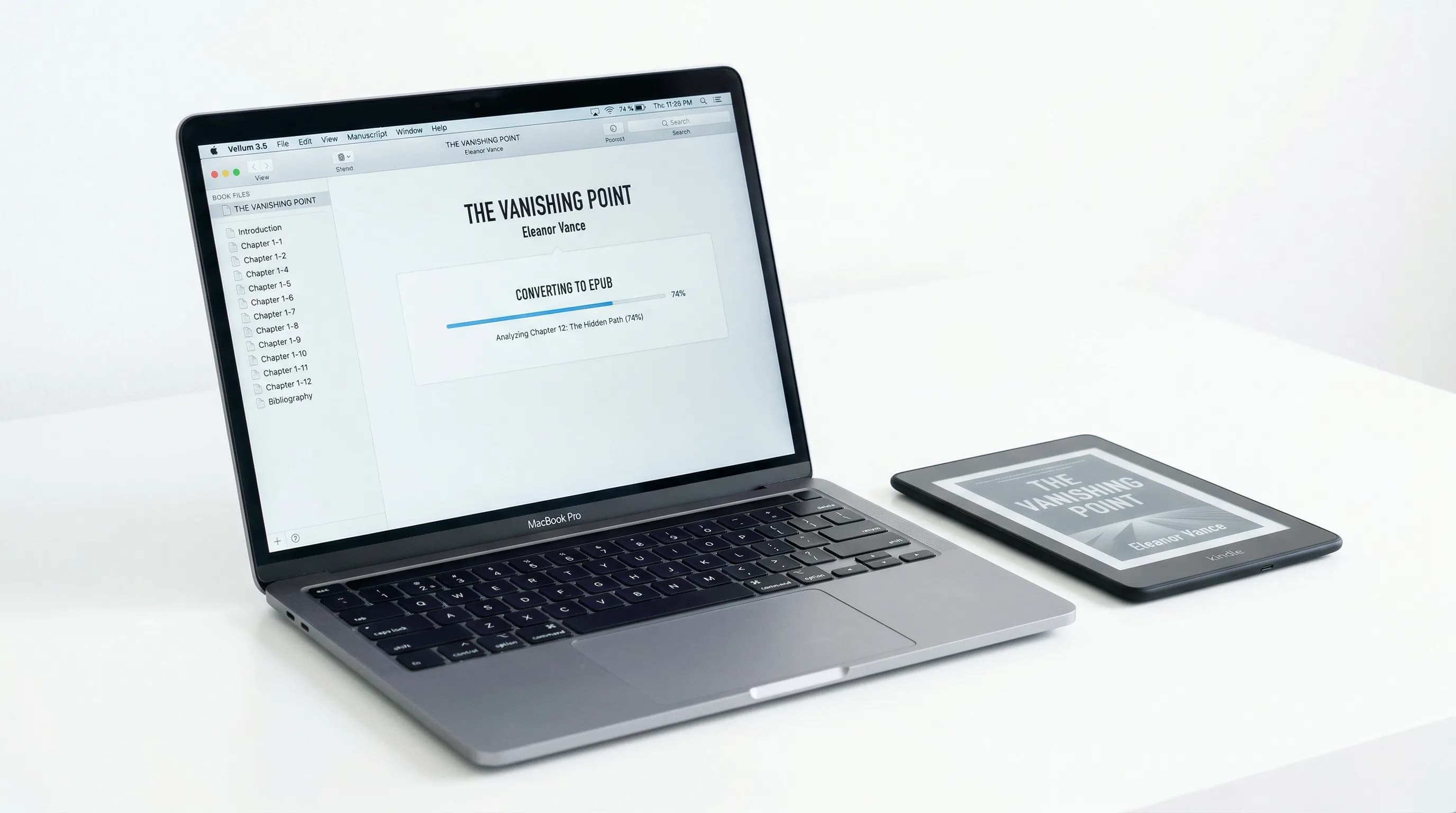
Step 1: Clean Up Your Manuscript
Before you touch any ebook styles, strip out all manual formatting. This is boring work but it matters the most. Dirty source files cause the majority of formatting headaches.
- Multiple consecutive spaces (one space between sentences is enough)
- Manual line breaks used for spacing (use paragraph spacing instead)
- Tab characters at the start of paragraphs (use first-line indent in CSS/styles)
- Hard page breaks within chapters (e-readers handle pagination on their own)
- Headers and footers (e-readers add their own)
- Page numbers (meaningless in reflowable ebooks)
- Manual hyphenation (e-readers hyphenate based on the reader's font size)
^t (tabs), ^p^p (double paragraph marks), and ^m (manual page breaks). Replace them one by one.Step 2: Set Up Styles (Heading Hierarchy, Body Text, Block Quotes)
Ebook formatting runs on named styles, not manual formatting. Every paragraph in your book should have a style assigned to it.
| Style | HTML Element | Purpose |
|---|---|---|
| Book Title | <h1> | Used once, on the title page |
| Chapter Title | <h2> | Chapter headings (generates TOC entries) |
| Section Heading | <h3> | Subsections within chapters |
| Body Text | <p> | Standard paragraphs |
| First Paragraph | <p class="first"> | First paragraph after a heading (no indent) |
| Block Quote | <blockquote> | Extended quotations |
| List Item | <li> | Bulleted or numbered lists |
- Font: Don't embed a specific font unless you have a good reason. If you do, include regular and bold weights, keep it under 2 MB, and make sure your license allows embedding.
- Font size: Use relative units (em or %) instead of fixed sizes (px or pt). This lets the reader's preferences actually work.
- Paragraph indentation: 1.5em first-line indent for body text. No indent on the first paragraph after a heading.
- Line spacing: 1.2em to 1.5em.
- Margins: Keep paragraph margins small. Big top/bottom margins create ugly whitespace on small screens.
Step 3: Handle Images in Ebooks
Images in ebooks need more attention than print images. Get this wrong and retailers will reject your file, downloads will take forever, or your images will look like blurry mush.
- Use 72-150 DPI (print uses 300 DPI). Max 1600px on the longest side.
- Amazon recommends no wider than 1600px and no taller than 2560px.
- Keep each image under 5 MB and the total ebook under 50 MB.
- JPEG for photos, PNG for illustrations or images with text.
- Place images as block-level elements (their own paragraph), not inline within text.
- Don't wrap text around images. It works unpredictably across devices.
- Center images horizontally. Set
max-width: 100%so they shrink on small screens without overflowing. - Add a blank line before and after each image for breathing room.
- Every image needs descriptive alt text for accessibility.
- Alt text is required by EPUB accessibility standards and helps discoverability.
- Describe what the image shows, not what it is. "Bar chart showing revenue growth from $1M in 2020 to $4M in 2025" beats "Figure 3."
Step 4: Create a Clickable Table of Contents
Every ebook needs two kinds of table of contents:
nav.xhtml using an <nav epub:type="toc"> element. Kindle uses it for the "Go to" menu.<h2> or equivalent, they won't show up in navigation.This is a visible page in your book — usually after the title page — listing chapters as clickable links. Readers expect it. Amazon requires it for Kindle books.
- List chapter titles as hyperlinks pointing to chapter heading anchors
- Use a clean hierarchy (parts, chapters, optionally sections)
- Try to keep it on a single page
Step 5: Set Up Front Matter and Back Matter
Ebook front and back matter follow similar conventions to print, with a few tweaks.
- Title page (book title, subtitle, author name)
- Copyright page (keep it short — ISBN, publisher, rights statement)
- Dedication (optional)
- Table of contents
- Foreword or preface (if applicable)
- Acknowledgments
- About the Author (with links to your website and social media)
- Also By This Author (with links to purchase pages)
- Appendices or bonus material
- Call to action (email list signup, review request)
Back matter matters more than you'd think. Amazon counts it toward Kindle Unlimited read-through payouts, and a good "Also By" section drives sales to your other books.
Step 6: Test on Multiple Devices and Readers
Don't publish without testing. Formatting that looks great in your editor can fall apart on actual reading devices.
- Kindle Previewer: Free app from Amazon. Simulates how your book looks on Kindle E Ink, Fire tablets, iOS, and Android. Use it before uploading to KDP.
- EPUBCheck: The official EPUB validator. Fix every error before publishing.
- Apple Books (Mac): Open your EPUB to see how Apple renders it.
- Calibre: Free ebook manager with a built-in viewer. Also handy for format conversion.
- Physical devices: Load your file onto a real Kindle or Kobo. Nothing beats testing on actual hardware.
Common Ebook Formatting Mistakes
These are the problems that catch most authors off guard. Dodge them and you'll be ahead of 80% of self-published ebooks.
text-align: center for centering, text-indent for indentation, proper table markup for columns.<dc:language>en</dc:language>). Without it, reading systems apply wrong hyphenation, screen readers mispronounce text, and your book might not show up in the right language category.Formatting for Specific Platforms
Each retailer has its quirks. Here's what to know for the four big ones.
Amazon Kindle (KDP)
- Accepted formats: EPUB, KPF, DOCX. (MOBI no longer accepted.)
- Upload EPUB for the simplest workflow. Amazon handles the conversion.
- Use Kindle Create for a KPF if you want enhanced typesetting (drop caps, better justification).
- Cover image: Must be embedded in the file. Minimum 625 x 1000px, recommended 1600 x 2560px.
- Kindle Previewer — use it. Download from Amazon's KDP tools page.
- Images look good on Kindle Fire but can appear small or washed out on E Ink screens. Test both.
- For more, see our KDP formatting guide.
Apple Books
- Accepted format: EPUB 3 (preferred), EPUB 2.
- Best EPUB 3 support of any major platform — embedded fonts, CSS3, and JavaScript all work.
- Apple is strict about validation. Your file must pass EPUBCheck with zero errors.
Kobo
- Accepted format: EPUB.
- Solid EPUB 3 support. Upload through Kobo Writing Life.
- Test on a physical Kobo if you can. Their rendering engine behaves differently from Kindle's.
Google Play Books
- Accepted formats: EPUB, PDF.
- Takes both reflowable and fixed-layout EPUB. Validation is less strict than Apple, but submit a clean file anyway.
Free vs. Paid Ebook Formatting Tools
Here's a quick rundown of the most common options.
- Kindle Create — Amazon's tool, converts DOCX to KPF. Decent basics but Kindle-only.
- Calibre — Open-source, converts between formats. The interface feels dated and fine-tuning means editing HTML/CSS.
- Sigil — Full EPUB editor with HTML/CSS access. Powerful but technical.
- Reedsy Book Editor — Web-based, exports EPUB/PDF. Clean interface, limited design options.
- Vellum ($250, Mac only) — Beautiful templates and the smoothest workflow. Only runs on Mac, though.
- Atticus ($147) — Cross-platform alternative to Vellum, web-based. Getting regular updates.
- Adobe InDesign ($23/mo) — Full control over everything. Steep learning curve. Overkill for most authors.
Ebook Formatting Checklist
Before uploading to any retailer, run through this list:
- Manuscript is clean (no tabs, double spaces, manual page breaks, headers/footers)
- All text uses named styles (no manual formatting overrides)
- Heading hierarchy is correct (H1 for title, H2 for chapters, H3 for sections)
- First paragraphs after headings have no first-line indent
- Images are 72-150 DPI, under 1600px on the longest side, and under 5 MB each
- Every image has descriptive alt text
- Clickable HTML table of contents is present and working
- Navigation TOC (NCX/nav.xhtml) is generated and includes all chapters
- Front matter is in the right order (title page, copyright, dedication, TOC)
- Back matter includes About the Author and Also By sections with links
- Language metadata is set correctly
- File passes EPUBCheck with zero errors
- Tested in Kindle Previewer across device types
- Tested in at least one non-Kindle reader (Apple Books, Calibre, or ADE)
- Total file size is under 50 MB
- Cover image is embedded and meets retailer resolution requirements
Start Formatting Your Ebook
Ebook formatting isn't glamorous work. It's methodical and unforgiving if you cut corners. But it's the difference between a book that looks professional and one that doesn't.
If you want to handle it yourself, everything you need is above. Work through the steps, use the checklist, and fix every EPUBCheck error before uploading.
However you do it, your readers deserve a book that looks as good as it reads.
Viktor Kacenak
“An ebook isn't a PDF with a different extension. Understanding reflowable content is what separates polished ebooks from broken ones.”
Recommended Reading
Book Design: The Complete Guide to Designing a Professional Book
Master book design with this definitive guide to covers, interior layout, and typography. Learn how to design a book that looks professionally published.
Book Layout: The Complete Guide to Professional Page Design
Learn how to create a professional book layout with proper margins, trim sizes, and page design. Covers fiction, nonfiction, workbooks, and more.

Book Manuscript Format: The Complete Guide to Formatting Your Manuscript Right
Learn the standard book manuscript format with exact specs for fonts, margins, spacing, and more. Covers fiction, nonfiction, submission, and self-publishing formats.